

A rebuilt growth tab, backgrounds for shared images, and favorites
1Sync
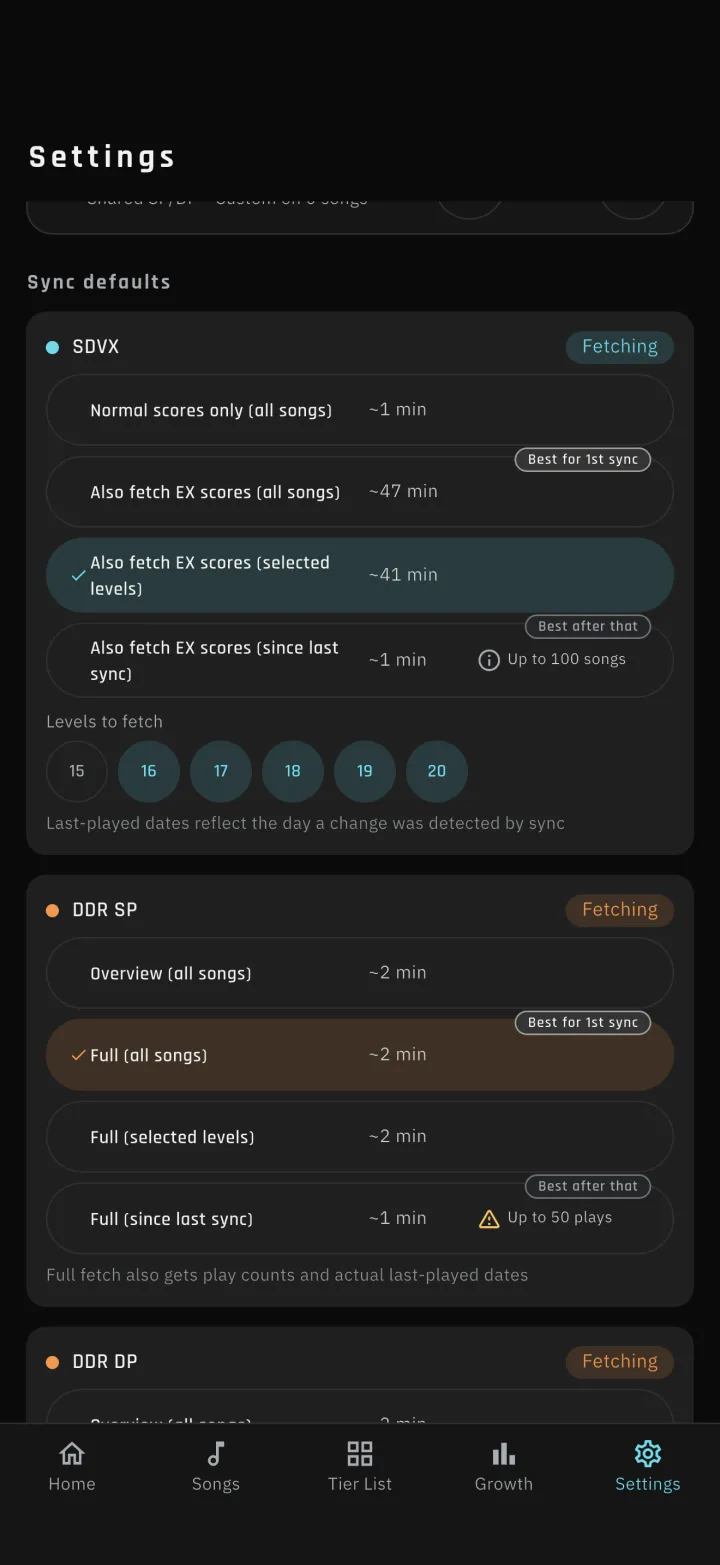
1-1Narrow the sync rangeSync now offers four options, so you no longer have to fetch every song each time and an everyday sync finishes sooner. If you sync often, use "Since last sync": it covers up to 100 recent songs on SDVX and up to 50 recent plays on DDR. On DDR, it switches to fetching all songs when the changes do not fit in 50 plays.SDVX: scores only (all songs) / with EX scores (all songs) / with EX scores (level range) / with EX scores (Since last sync)DDR: summary (all songs) / details (all songs) / details (level range) / details (Since last sync)2Growth tab
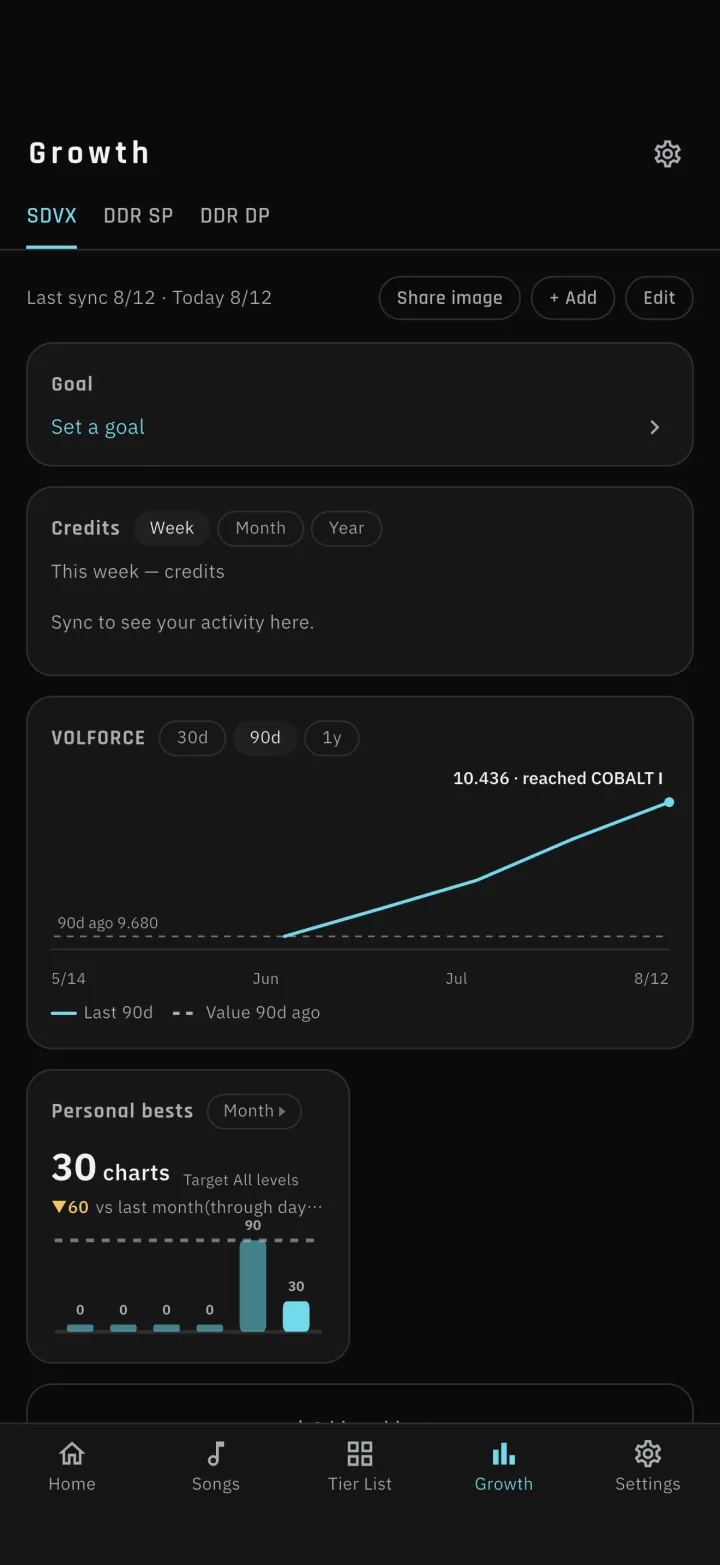
2-1A board for each gameThe growth tab is now a dashboard of widgets you pick and arrange. Boards are kept separately for each game (SDVX, DDR SP, DDR DP), each with its own widgets, its own order and its own period. 2-2Add widgetsWidgets fall into two kinds: ones for setting a goal, and ones that visualize your growth and activity records. The records you can visualize are:VOLFORCE and flare skill over timeGrade distribution, clear lamps, flare ranksAn activity calendar with play streaksLevel-by-level progress, the effect radar, ARENA POWERFlare skill target songs, personal bestsPlay counts, calories burned 2-3Share the board as an imageYou can turn a board into an image, choosing which widgets to include. 2-4Set a goalChoose which metric, at which levels, how much, and between which two dates you want to reach it. 2-5The goal widgetSee how you're tracking against your plan, and where you'll land. Set your goal for the year in January and you can see at a glance whether you are on track.3Judge timing
3-1A distribution chartThe judge-timing reference value in song details changed from a single average line to a distribution chart. The x-axis is the value you would set, the y-axis is how many players use it, with the average, the median and the sample size alongside. The more people set a value, the clearer the sweet spot becomes. Some songs have more than one, so fine-tune from how your own plays actually go.4Backgrounds for shared images
4-1Choose a backgroundAll five kinds of shared image (results, Tier List, growth, target songs and the song list) can now use a background of your own choosing. The built-in presets give you six choices, matched to the color themes. Each of the five kinds can have its own theme. 4-2Adjust the backgroundYou can save five custom settings, adjusting background color, opacity, blur, brightness, contrast, text color and more. Instead of a background color, you can use a photo from your device (photos are not backed up).5Song list
5-1FavoritesMark the songs you care about and filter the list down to them later. 5-2Filter by score gradeThe filter gained a score grade section. It works the same way as the clear lamp filter.6Color themes
6-1Blossom addedA pink theme, Blossom, has been added. There are now six color themes.7Fixes
1-1
-
1-1Narrow the sync range
Sync now offers four options, so you no longer have to fetch every song each time and an everyday sync finishes sooner. If you sync often, use "Since last sync": it covers up to 100 recent songs on SDVX and up to 50 recent plays on DDR. On DDR, it switches to fetching all songs when the changes do not fit in 50 plays.
SDVX: scores only (all songs) / with EX scores (all songs) / with EX scores (level range) / with EX scores (Since last sync)DDR: summary (all songs) / details (all songs) / details (level range) / details (Since last sync)
-
2-1A board for each game
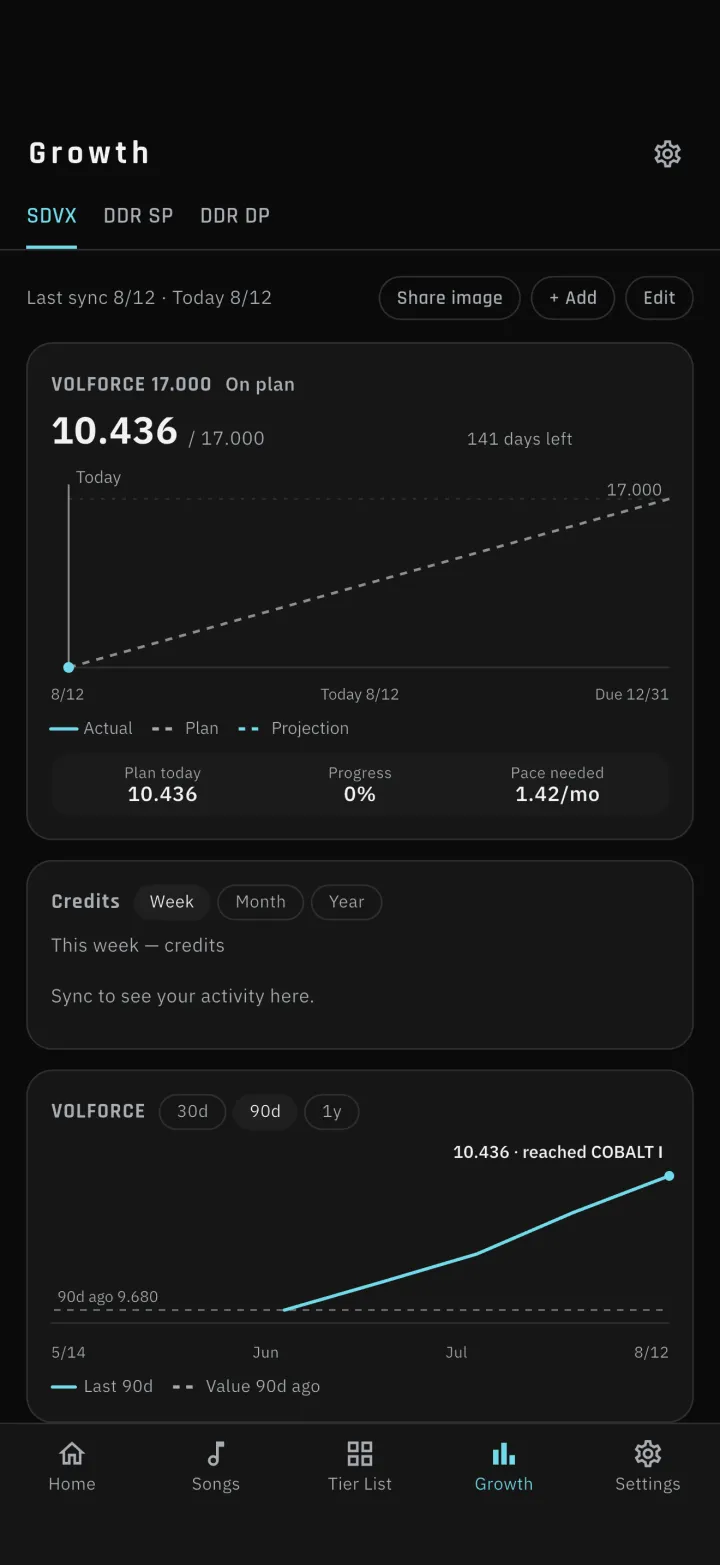
The growth tab is now a dashboard of widgets you pick and arrange. Boards are kept separately for each game (SDVX, DDR SP, DDR DP), each with its own widgets, its own order and its own period.
-
2-2Add widgets
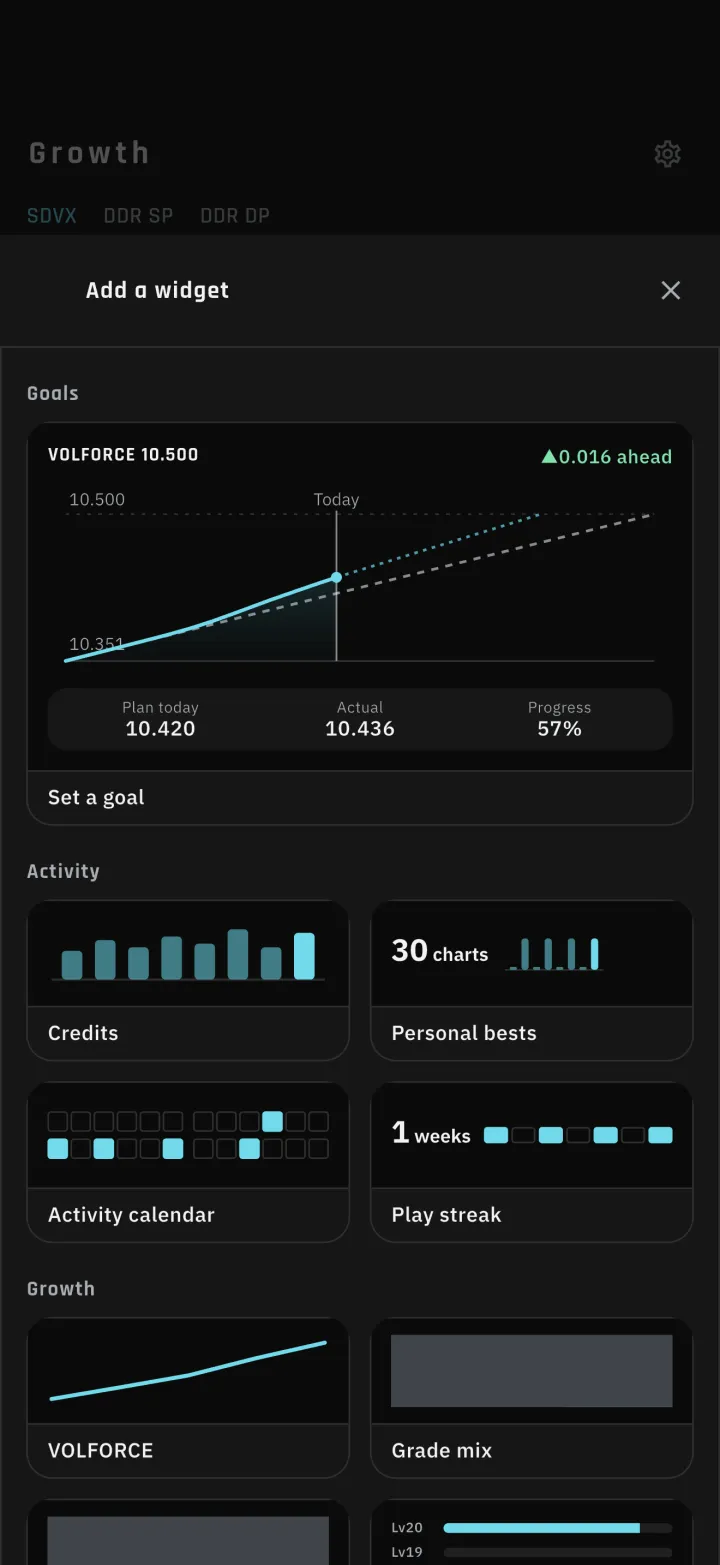
Widgets fall into two kinds: ones for setting a goal, and ones that visualize your growth and activity records. The records you can visualize are:
VOLFORCE and flare skill over timeGrade distribution, clear lamps, flare ranksAn activity calendar with play streaksLevel-by-level progress, the effect radar, ARENA POWERFlare skill target songs, personal bestsPlay counts, calories burned
-
2-3Share the board as an image
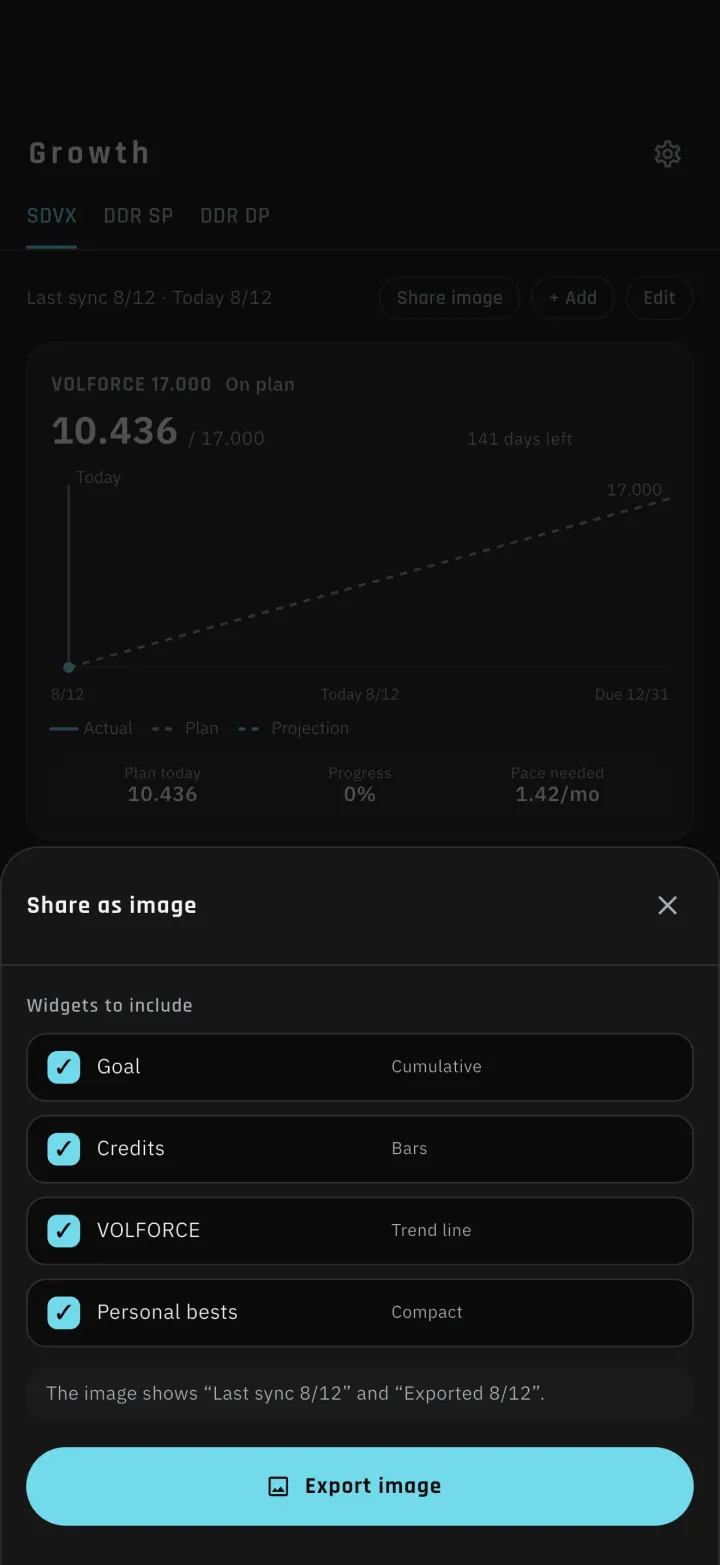
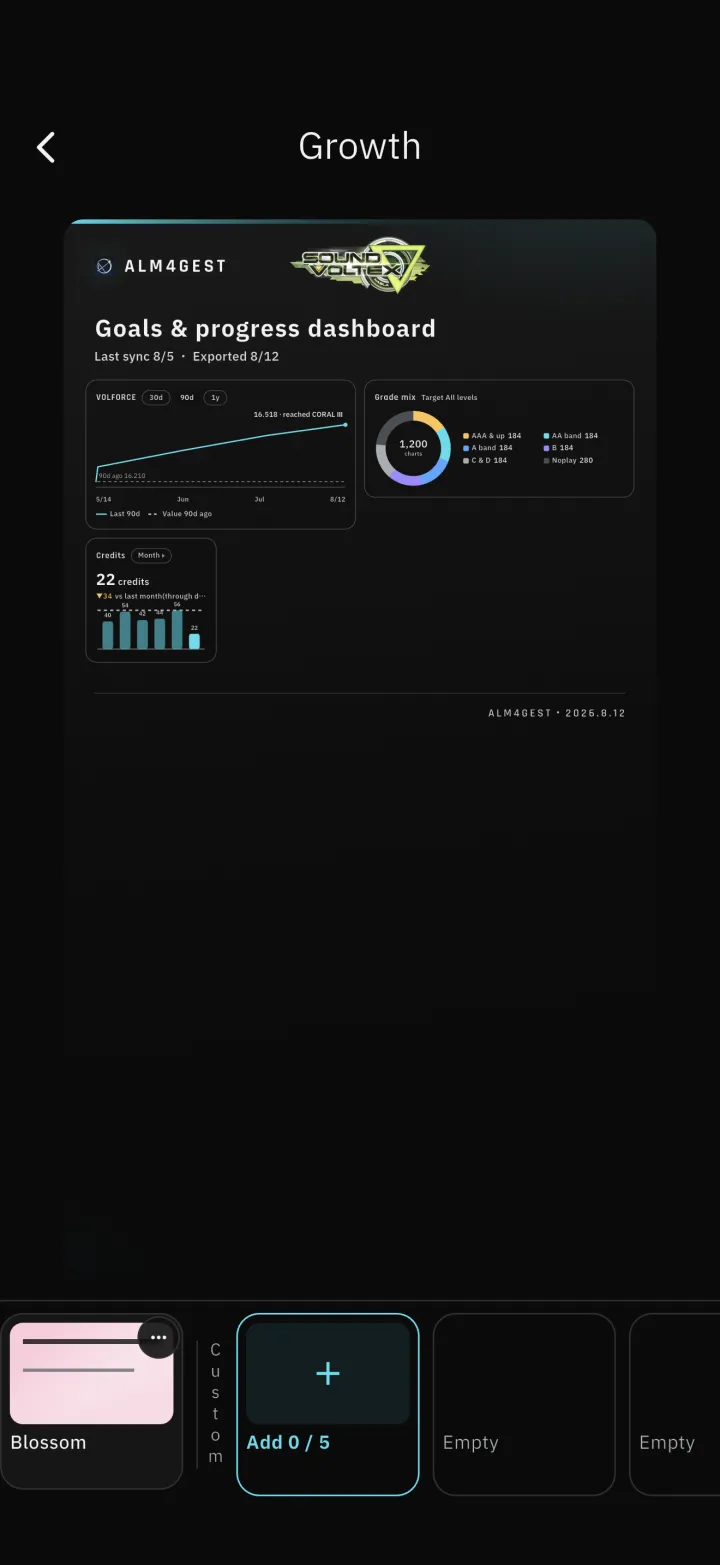
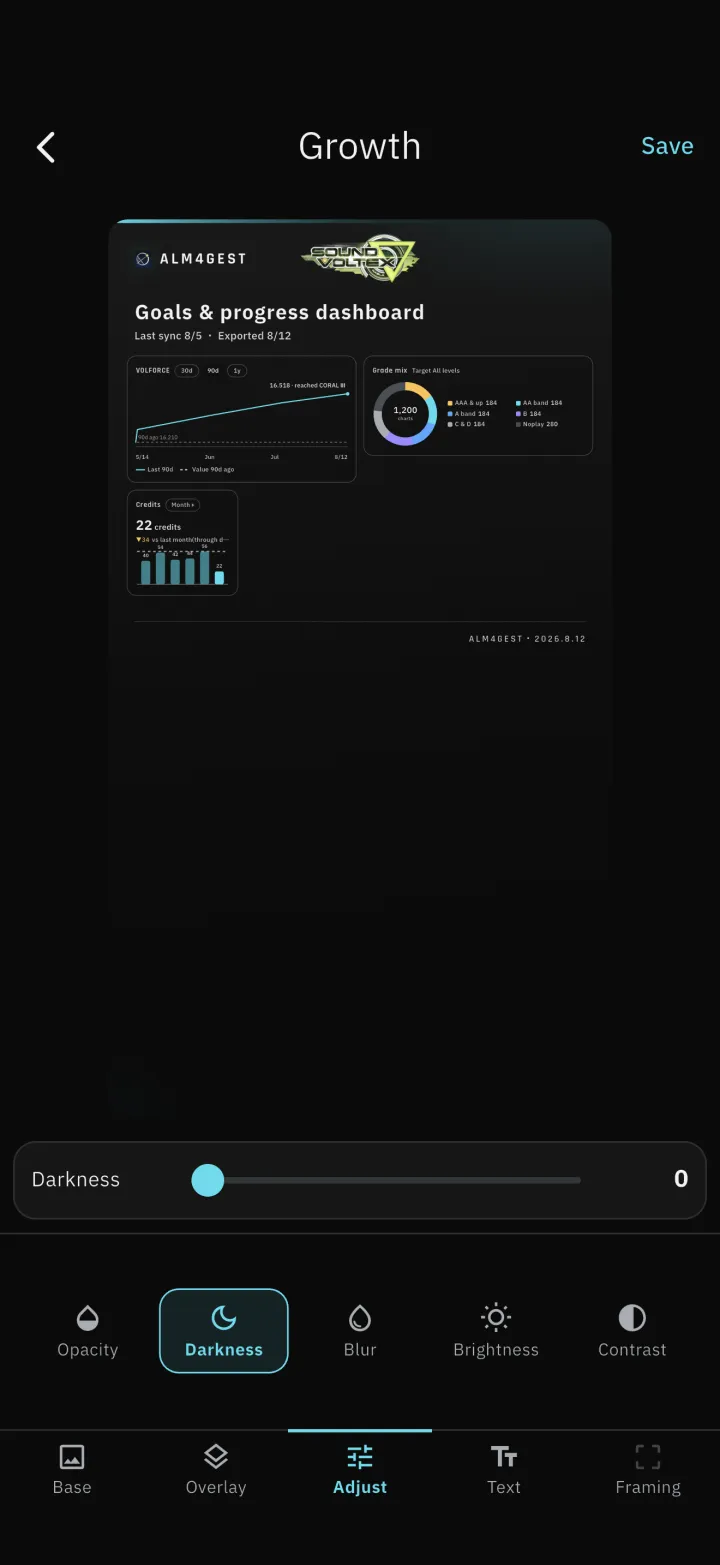
You can turn a board into an image, choosing which widgets to include.
-
2-4Set a goal
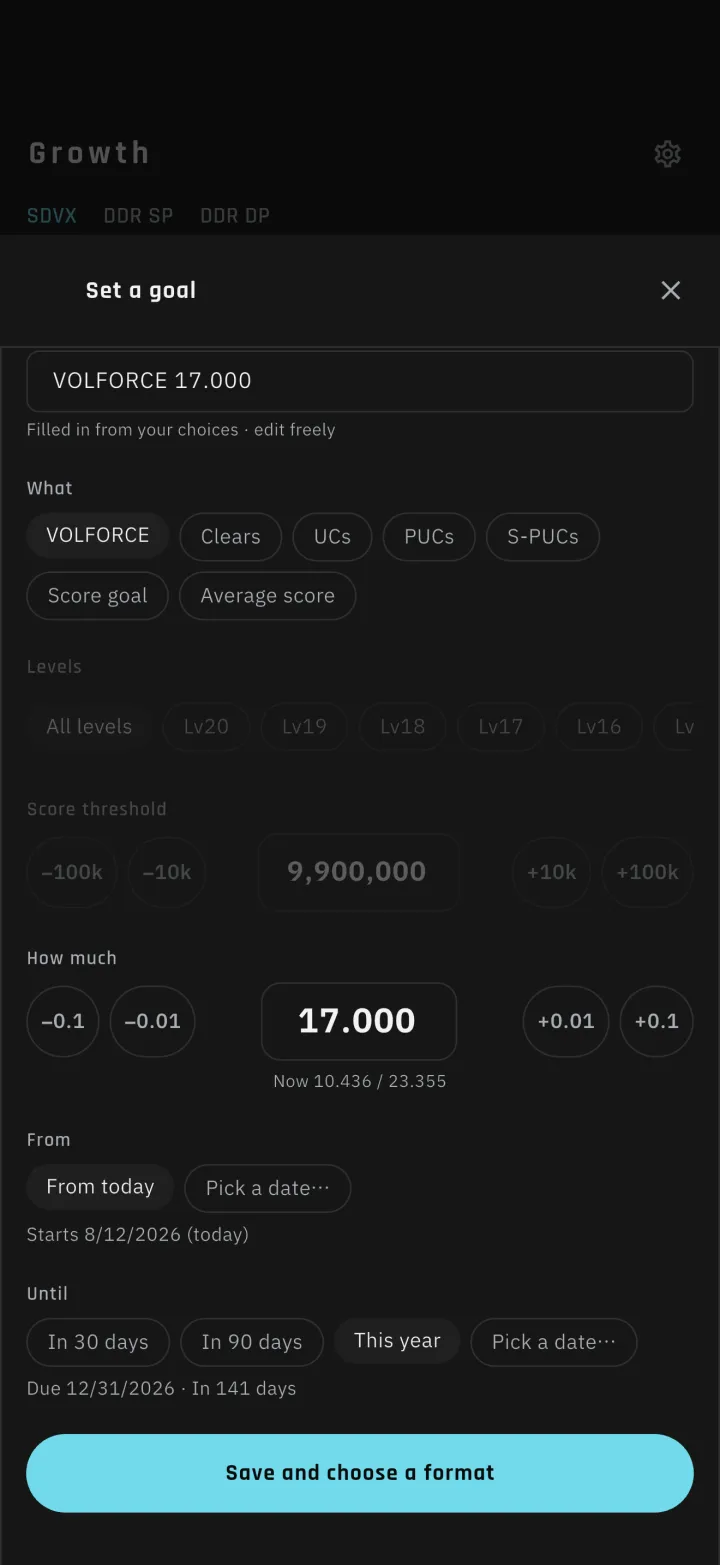
Choose which metric, at which levels, how much, and between which two dates you want to reach it.
-
2-5The goal widget
See how you're tracking against your plan, and where you'll land. Set your goal for the year in January and you can see at a glance whether you are on track.
-
3-1A distribution chart
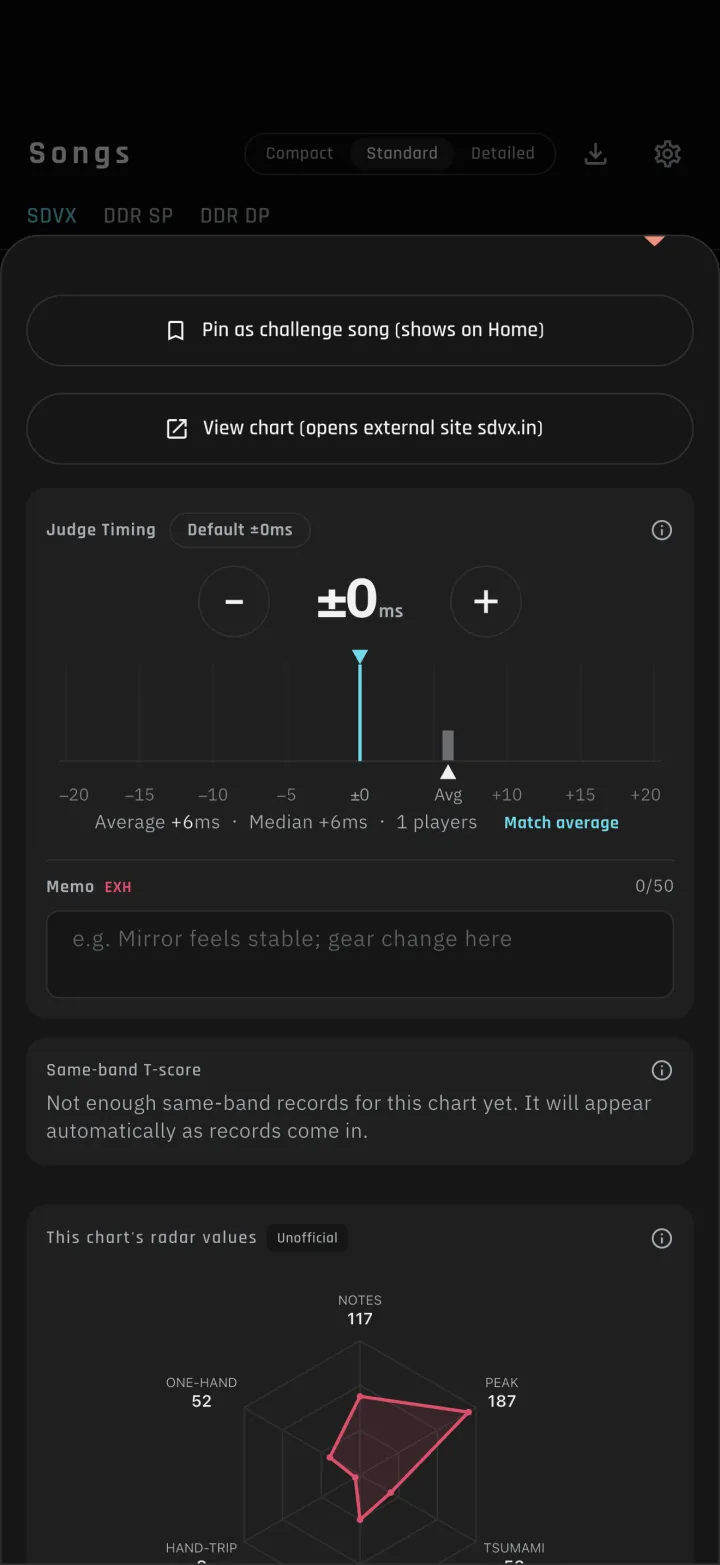
The judge-timing reference value in song details changed from a single average line to a distribution chart. The x-axis is the value you would set, the y-axis is how many players use it, with the average, the median and the sample size alongside. The more people set a value, the clearer the sweet spot becomes. Some songs have more than one, so fine-tune from how your own plays actually go.
-
4-1Choose a background
All five kinds of shared image (results, Tier List, growth, target songs and the song list) can now use a background of your own choosing. The built-in presets give you six choices, matched to the color themes. Each of the five kinds can have its own theme.
-
4-2Adjust the background
You can save five custom settings, adjusting background color, opacity, blur, brightness, contrast, text color and more. Instead of a background color, you can use a photo from your device (photos are not backed up).
-
5-1Favorites
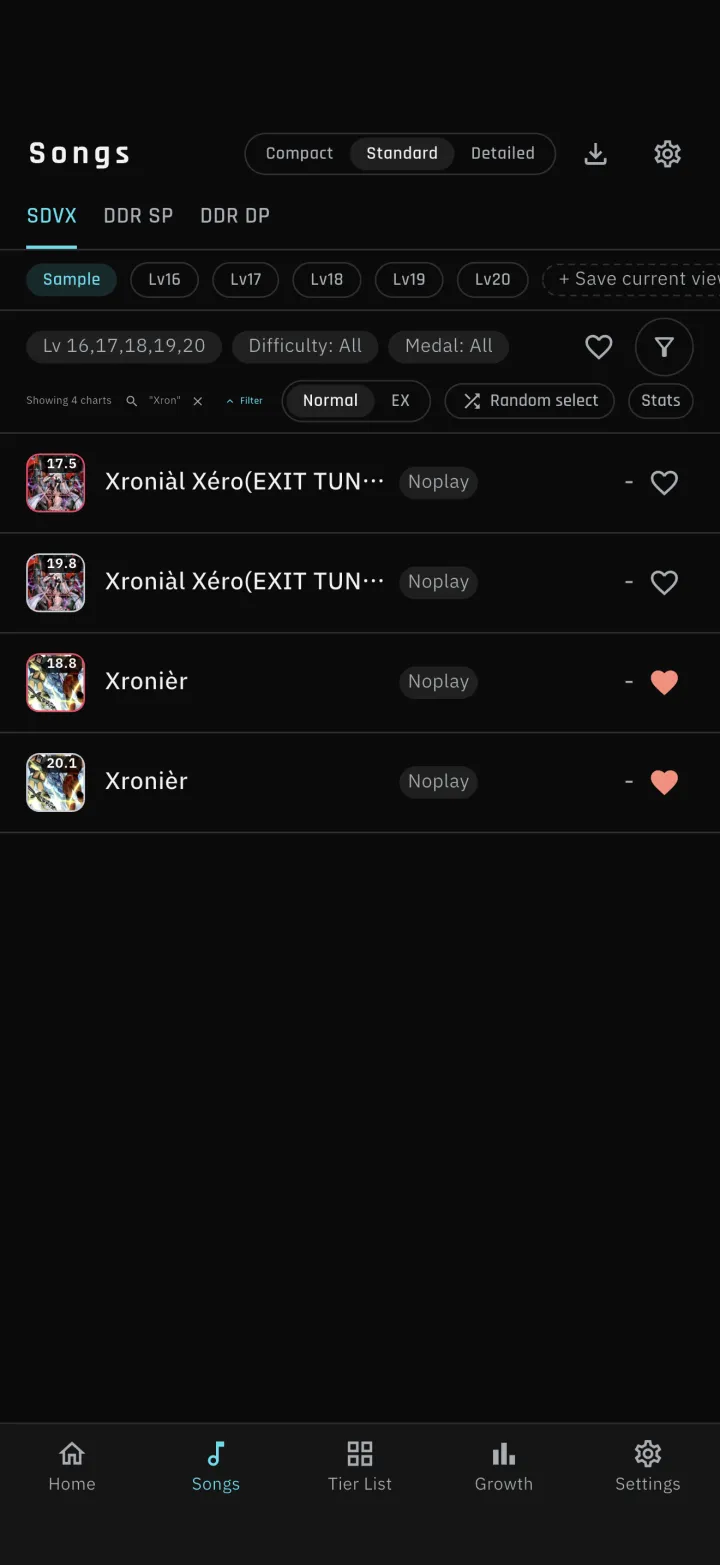
Mark the songs you care about and filter the list down to them later.
-
5-2Filter by score grade
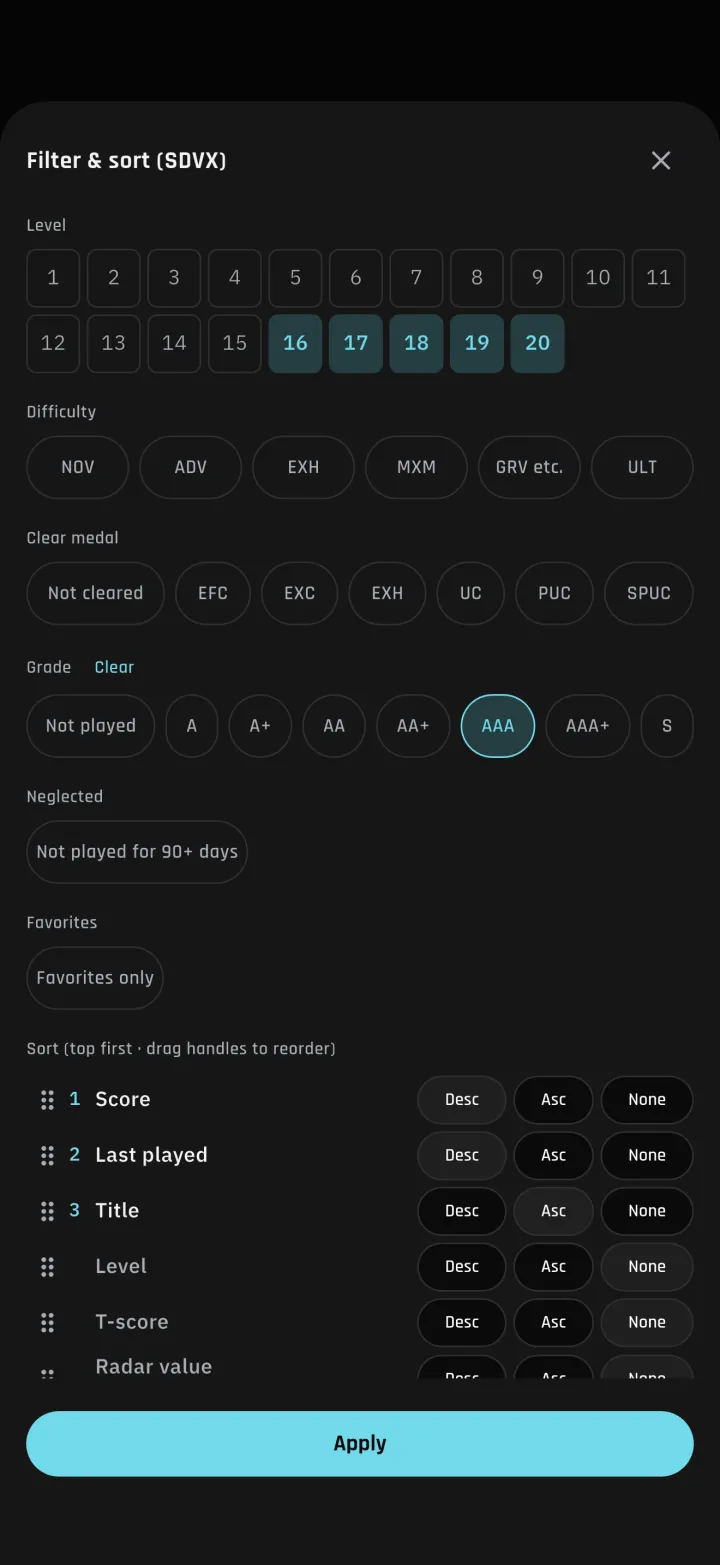
The filter gained a score grade section. It works the same way as the clear lamp filter.
-
6-1Blossom added
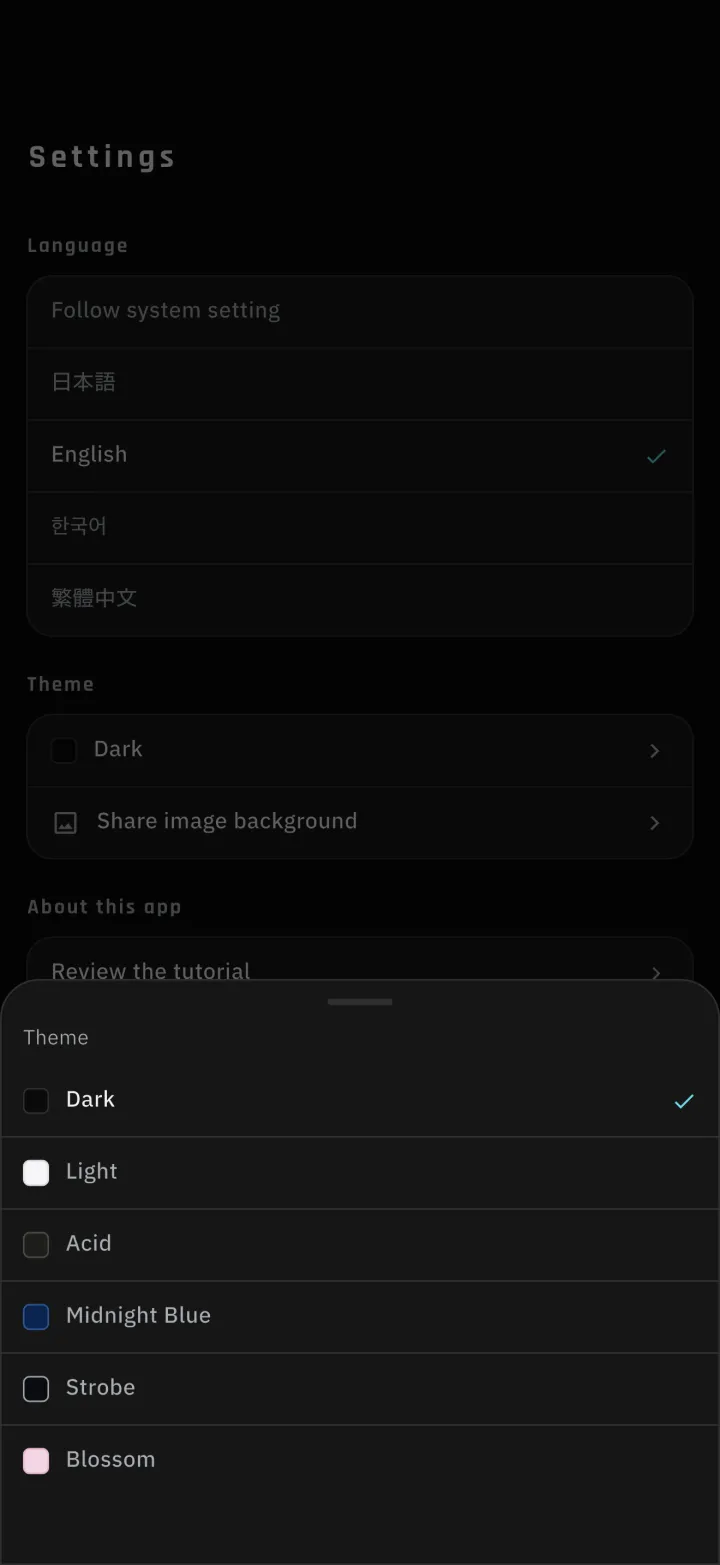
A pink theme, Blossom, has been added. There are now six color themes.